Frontend SDK Integration Configuration
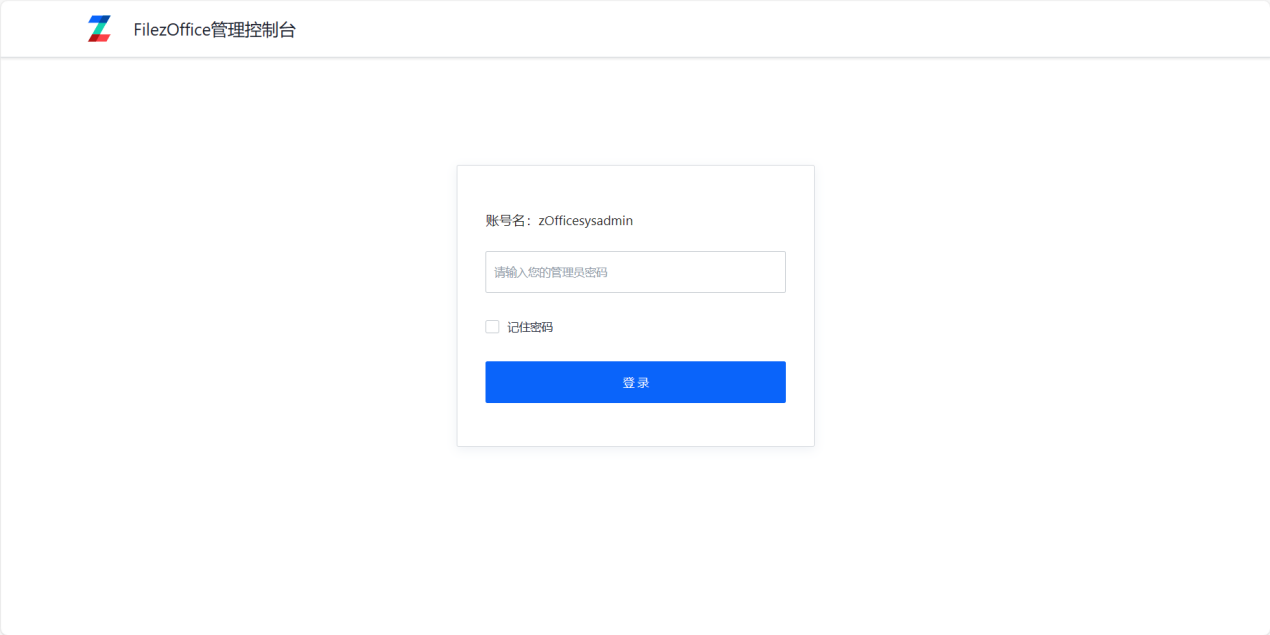
- Log in to the management console (
docs/app/admin), default password isadmin.
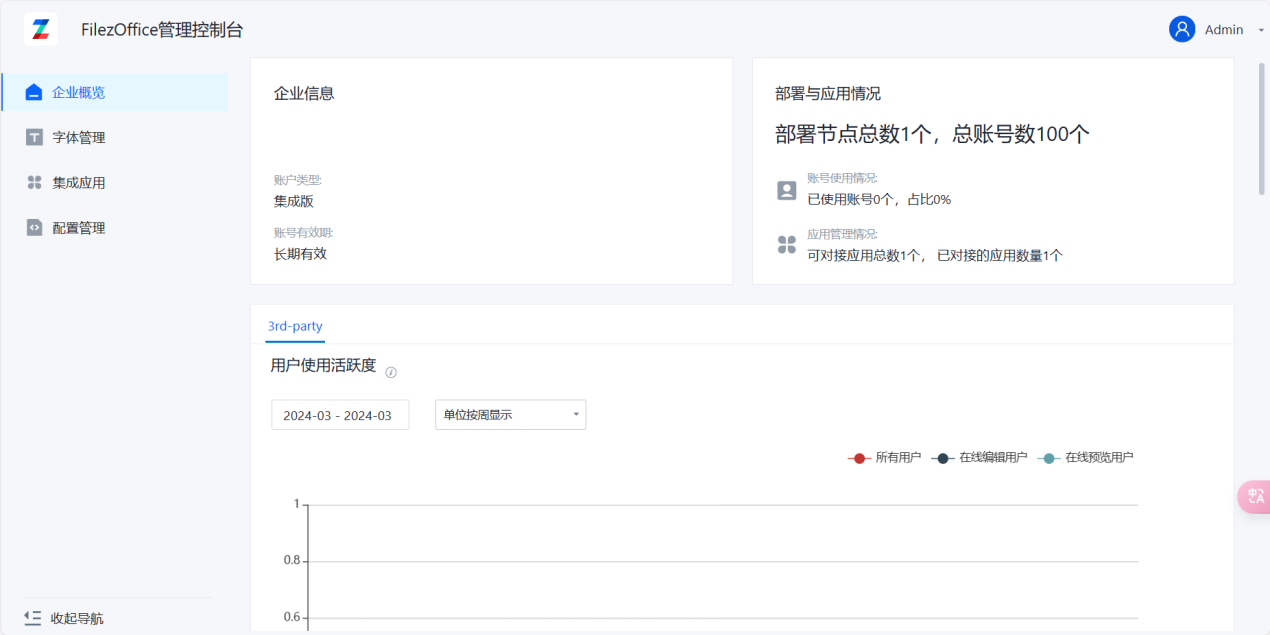
- Click on Integration Applications to enter the integration configuration page.
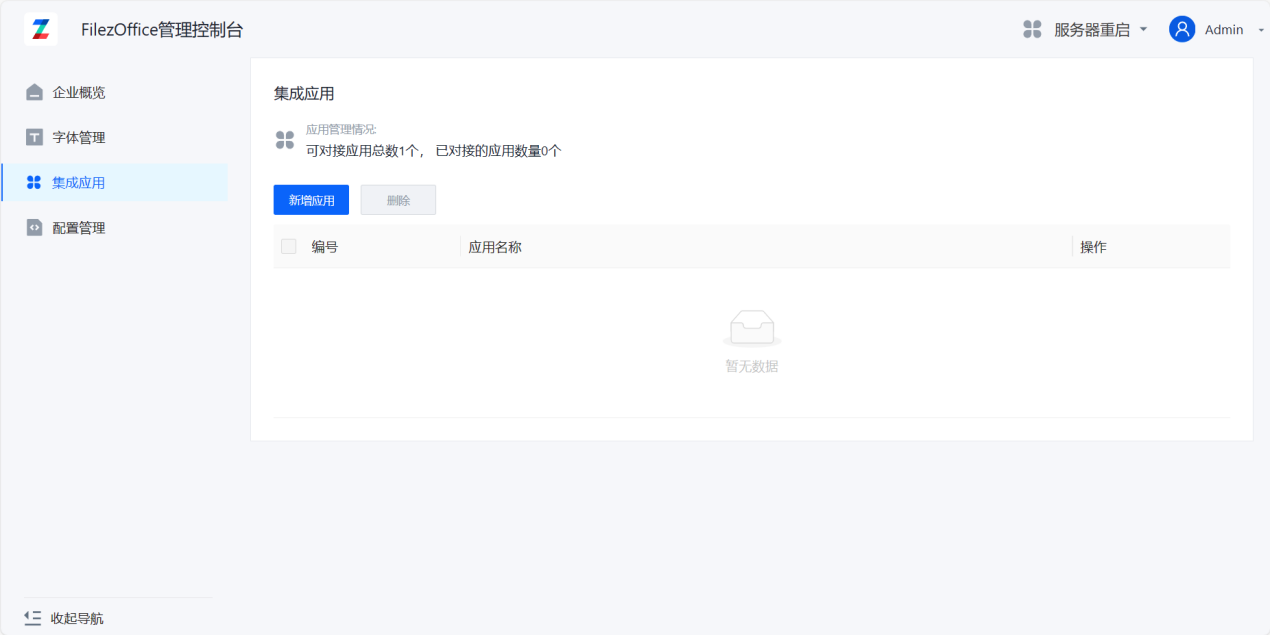
- Click Add Application to enter the add application page.
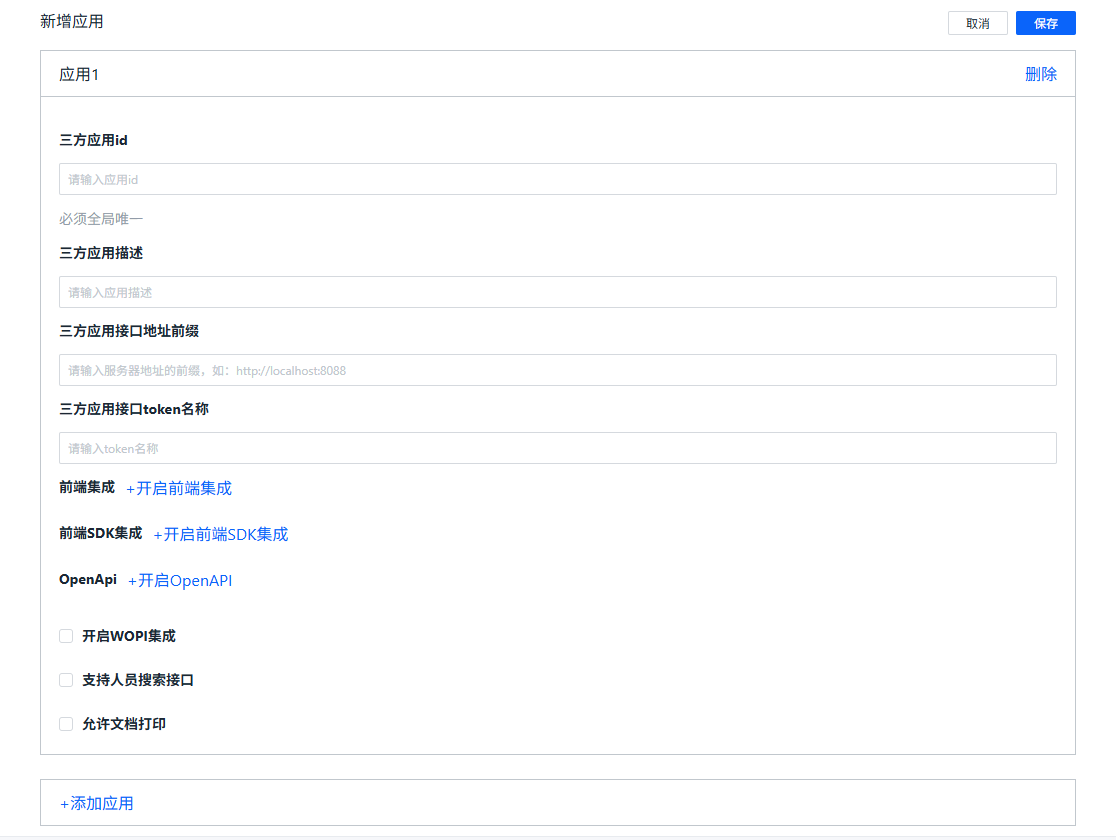
- Fill in the application information:
Third-party Application ID and Third-party Application Interface Address are required fields, others are optional. The Third-party Application Interface Address will constrain the prefix of the callback URLs to the third-party interfaces. The Third-party Application Interface Token Name defaults to zdocs_access_token (no need to modify).
Click Enable Frontend SDK Integration and fill in the Integration Encryption Key. You can generate it with the following command:
openssl rand -base64 64
This key also needs to be saved on the business system server side. Click Add Application at the bottom to add multiple application integrations at the same time.
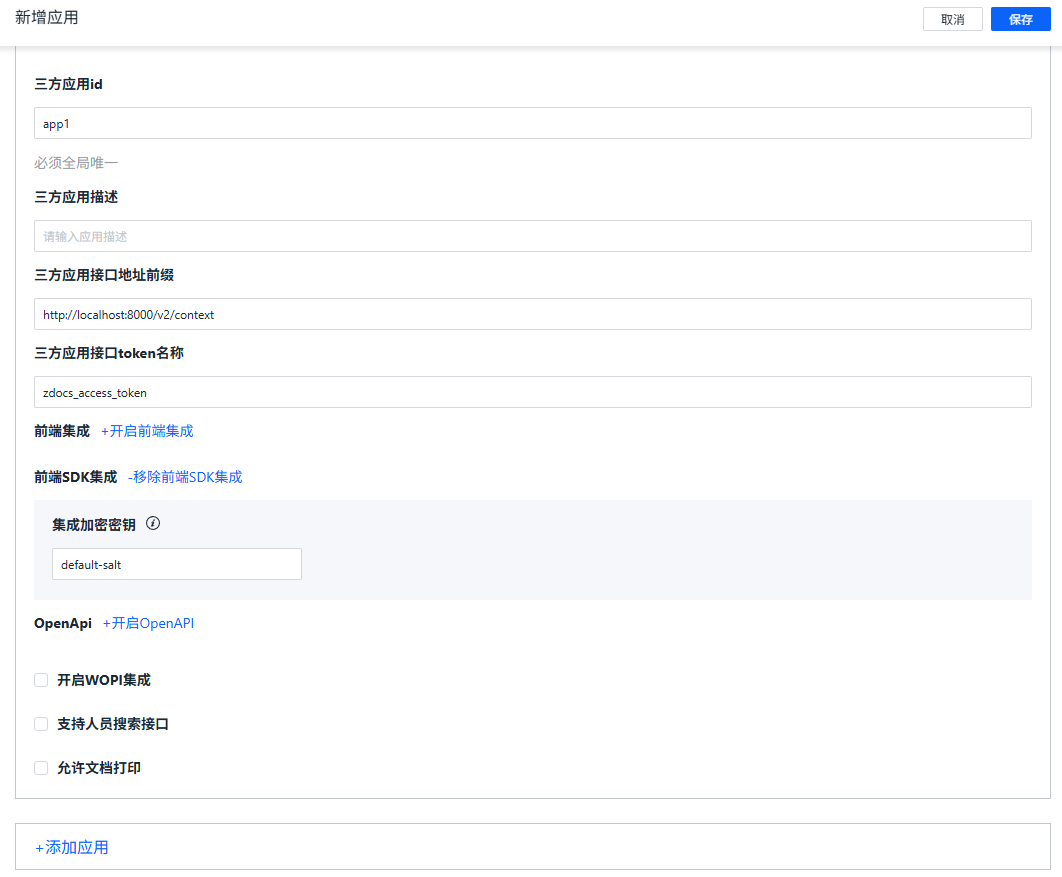
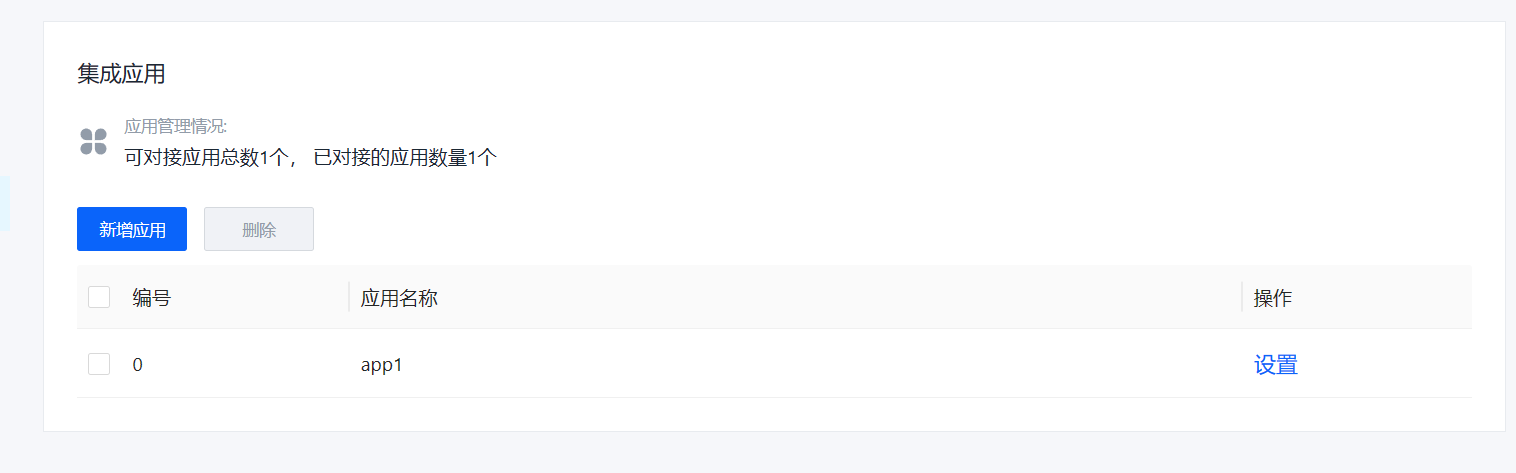
- After filling in, click Save. You can see the new application appear in the application list.