Configuration
1. Filez Docs Platform configuration
1.1 Enable WOPI integration via Admin Console
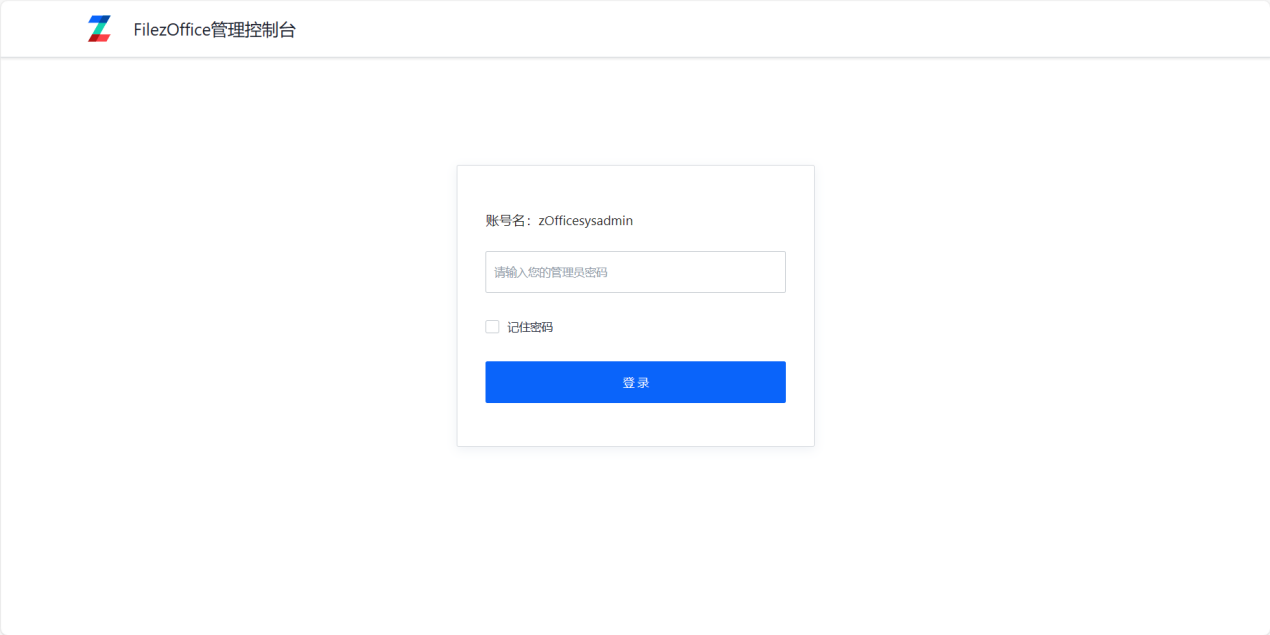
- Sign in to the Admin Console (
docs/app/admin). The default password isadmin.
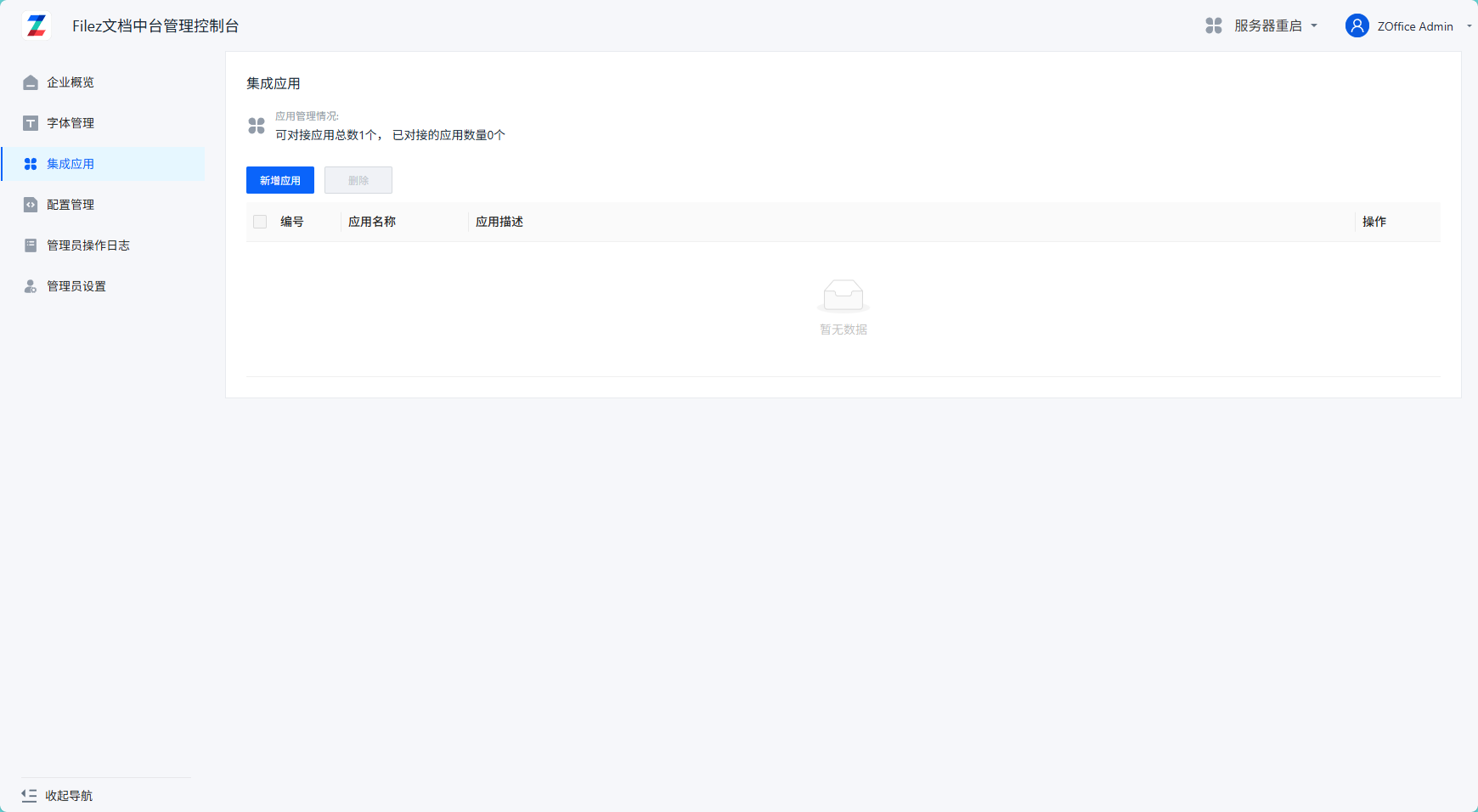
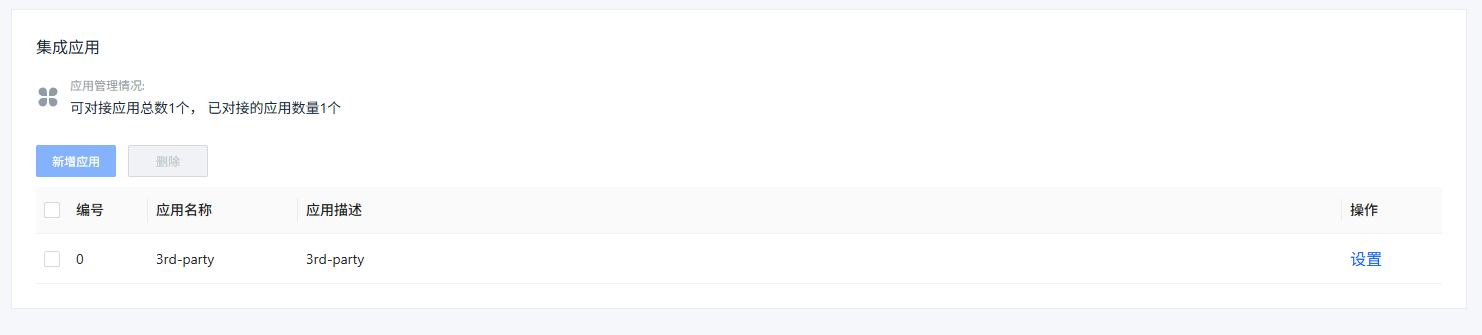
- Click Integration Apps to open the integration configuration page.
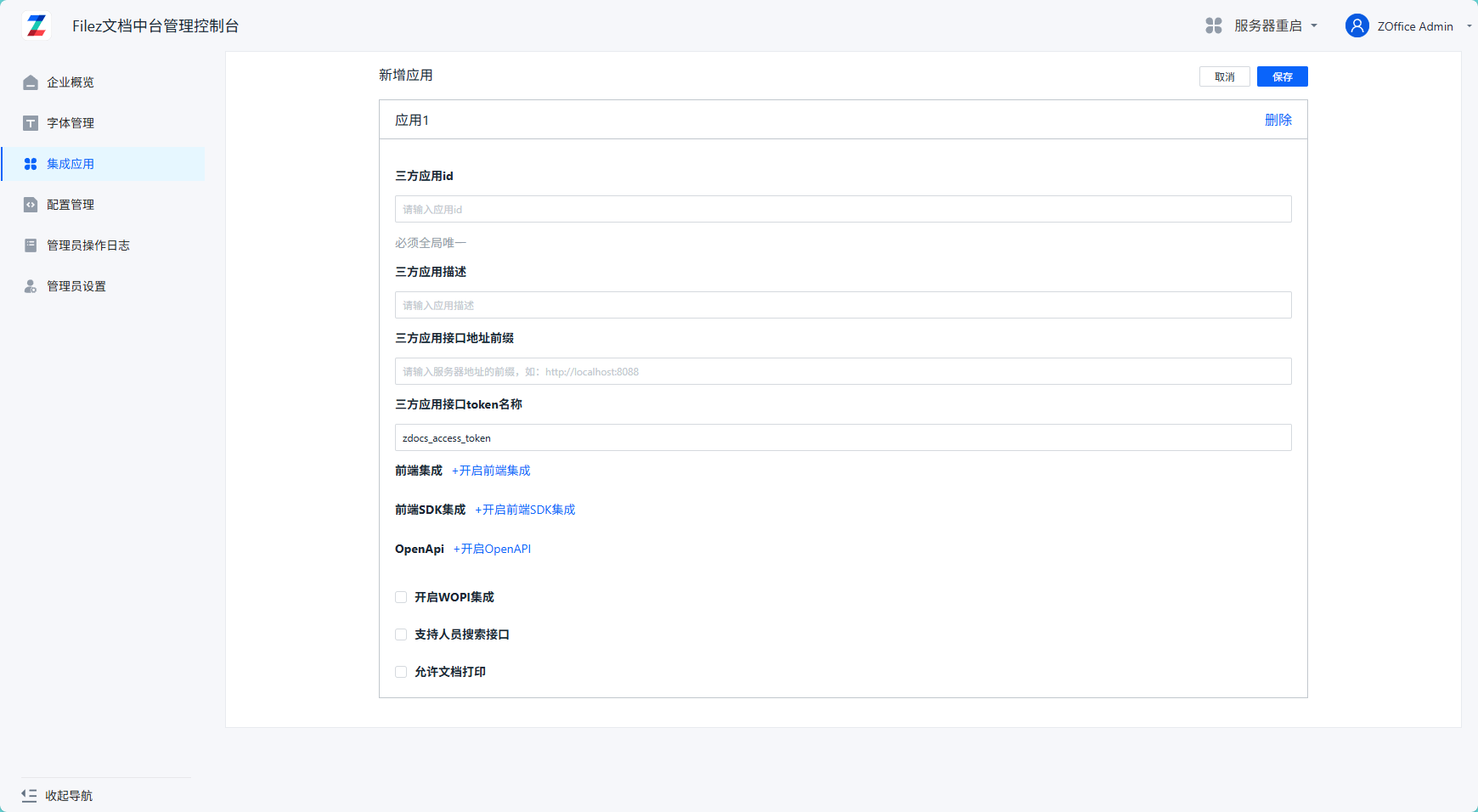
- Click Add App to open the page for creating a new app integration.
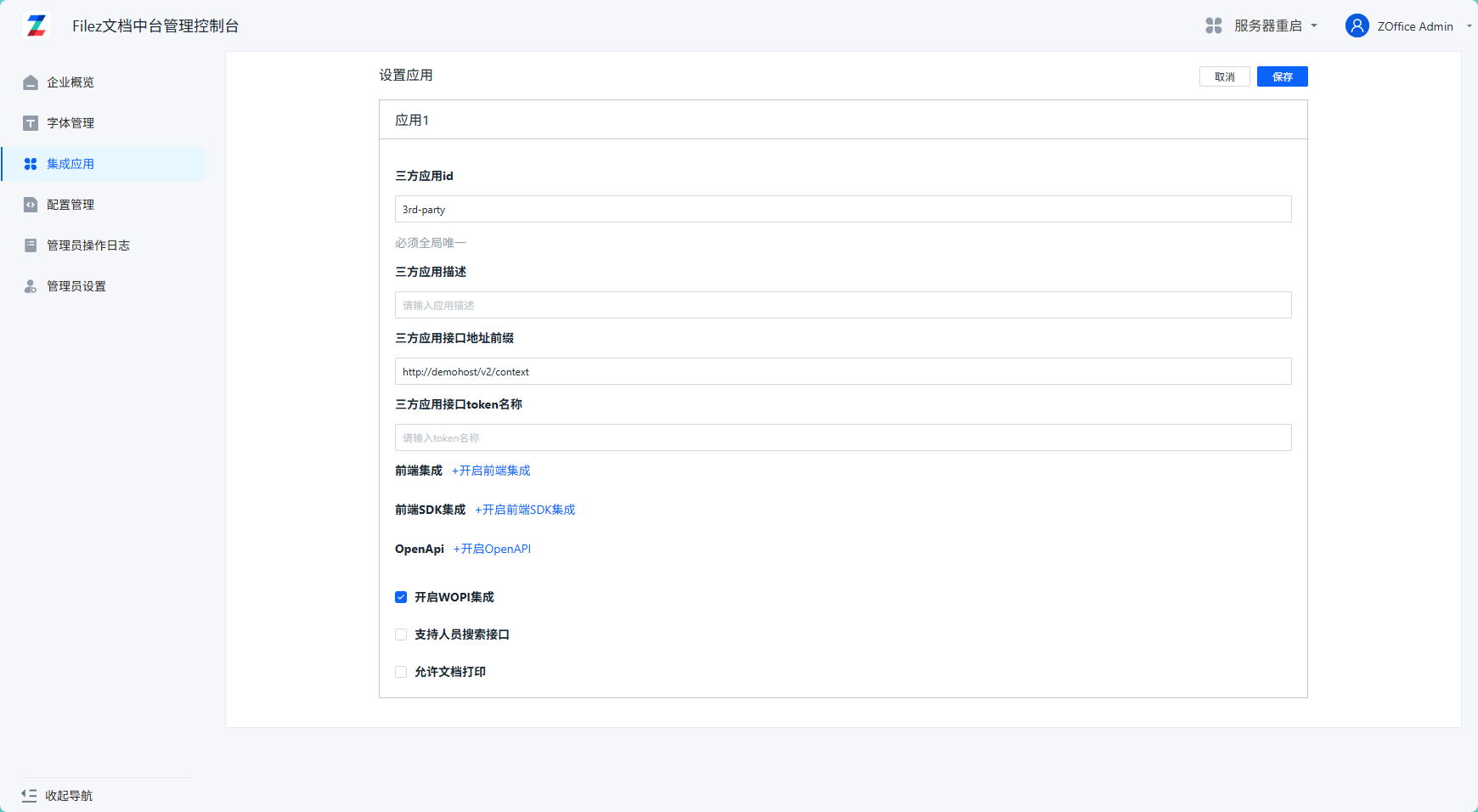
- Fill in the app information:
The third-party app ID and the third-party app API base URL are required; other fields are optional. The third-party app API base URL will constrain the WOPI callback address. The default token name is zdocs_access_token (no need to change).
Enable WOPI Integration.
Click Add App at the bottom to add multiple app integrations.
- After completing the form, click Save. You will see the new app appear in the app list.
1.2 Configure keys and platform access URL
1.2.1 Configure the platform access URL
To support WOPI integration, you must configure the external access URL of Filez Docs Platform.
Sign in to the Filez Docs Platform server, go to /opt/docs, and add the following configuration to zdocs.env:
LS_WEBRESOURCE_APISERVERURL=The hostname or IP used to access Filez Docs Platform externally, e.g. "zofficehost"
LS_WEBRESOURCE_APISERVERPORT=The port used to access Filez Docs Platform externally. Default: 8001 (optional)
LS_WEBRESOURCE_APIHTTPSSERVERPORT=The HTTPS port used to access Filez Docs Platform externally. Default: 443 (optional)
Note:
Filez Docs Platform needs to know its own access URL (including the domain/IP and port) in order to generate the urlsrc (online document access URL) in discovery.xml. For example, if the URL to access the Admin Console in your network environment is https://zofficehost:12443/docs/app/admin, you should configure:
LS_WEBRESOURCE_APISERVERURL=zofficehost
LS_WEBRESOURCE_APIHTTPSSERVERPORT=12443
If the URL is http://172.16.52.29:8088/docs/app/admin, you should configure:
LS_WEBRESOURCE_APISERVERURL=172.16.52.29
LS_WEBRESOURCE_APISERVERPORT=8088
1.2.2 Keys
Note: This step is required, even if you choose not to validate requests from Filez Docs Platform. Filez Docs Platform uses a private key to sign outgoing requests. See Proof Keys for details.
Sign in to the Filez Docs Platform server, go to /opt/zdocs/data, and generate the key files:
openssl genrsa -out wopi_private_key.pem 2048
openssl rsa -in wopi_private_key.pem -pubout -out wopi_public_key.pem
Then go to /opt/docs and update docker-compose.yml (or doc0x.yml for a 3-node deployment) to mount the key files:
services:
  docs:
    container_name: docs
    image: 172.16.58.10/zdocs/master:latest
    init: true
    restart: always
    hostname: docs
    labels:
      - "autoheal=true"
    networks:
      - docs
    volumes:
      - /opt/zdocs/luoshu_log:/opt/srv/zdocs/logs
      - /opt/zdocs/drafts:/opt/srv/zdocs/drafts
      - /opt/zdocs/data:/opt/srv/zdocs/dist/data # Mount key files
      - /opt/zdocs/tmp:/tmp/zdocs
      - /etc/localtime:/etc/localtime:ro
      - /opt/zdocs/customFonts:/usr/share/fonts/custom
1.2.3 Restart Filez Docs Platform
Restart Filez Docs Platform:
docker-compose down
docker-compose up -d
2. Application configuration
The access endpoints of Filez Docs Platform are compatible with Microsoft’s. For example, the DOCX preview URL is:
http://zoffice_hostname:8001/docs/app/wopi/wv/wordviewerframe.aspx
So if you are using a fixed access URL, you only need to add /docs/app/wopi/ in front of the Microsoft URL.
If you use the Discovery endpoint, the Discovery URL of Filez Docs Platform is:
http://zoffice_hostname:8001/docs/hosting/discovery