Important Terms
Before integrating with each application, the integration personnel of the business system need to determine: business system ID and business system callback context.
Document ID (docId)
That is, docId. Every file in a third-party system must have a unique document ID. The same file has the same ID. When a third-party system requests online editing/preview services, it needs to specify the docId for editing/previewing.
Important Notes:
- docId is the ID that identifies the file, string type
- Cannot contain colon
: - Cannot have one ID corresponding to different files, one moment it's a Word file, the next moment it becomes a PDF file
- Cannot have the same file, this time editing uses this ID, next time editing uses another ID
Business System ID (appId/repoId)
When a third-party system requests online editing/preview services, it needs to specify the appId for the current request.
Notes:
- This ID needs to be configured in the Filez Document Platform
Third-Party Business System Callback Context
Third-party business systems need to provide file upload and download addresses, and the prefix of the address (must include host) needs to be configured in the Filez Document Platform.
Example, if the configured context is:
http://my.integration.com
Then the download and upload URLs in the initialization configuration must start with http://my.integration.com.
Frontend SDK Integration Configuration
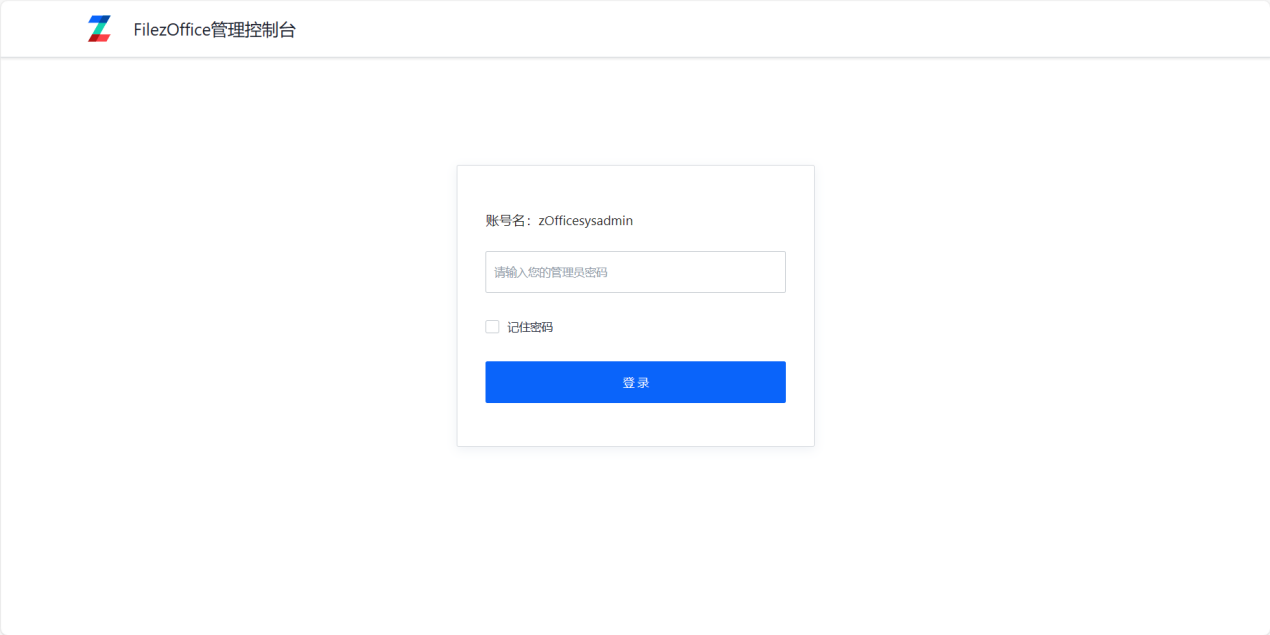
- Log in to the management console (
docs/app/admin), default password isadmin.
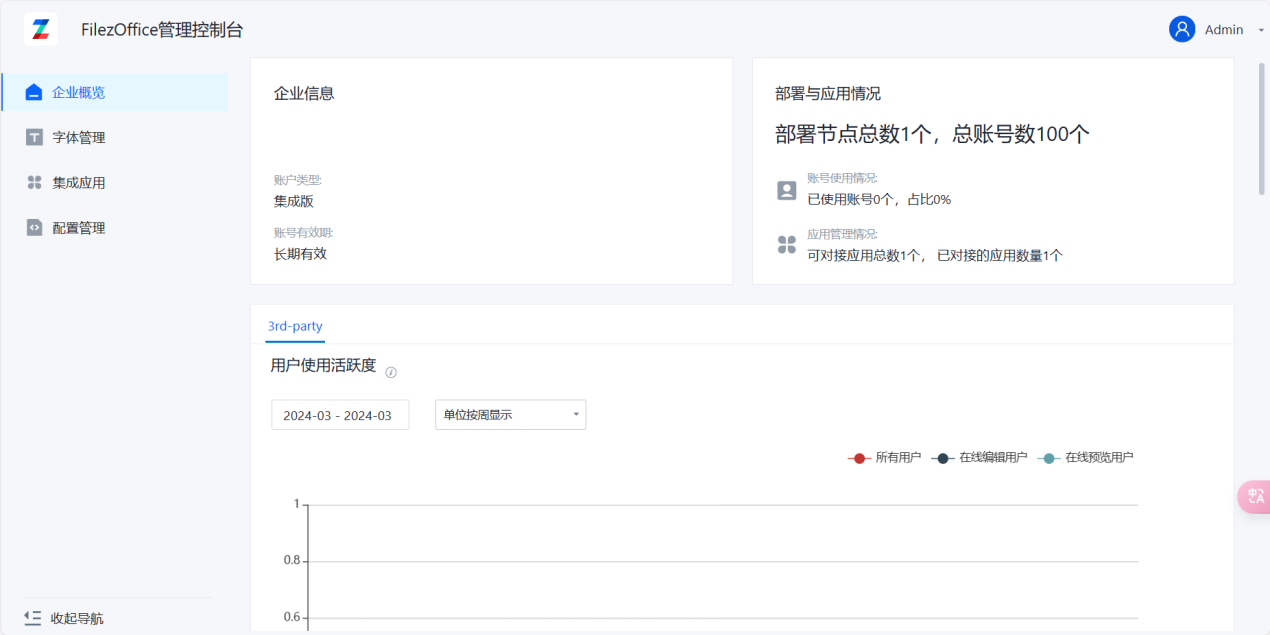
- Click on Integration Applications to enter the integration configuration page.
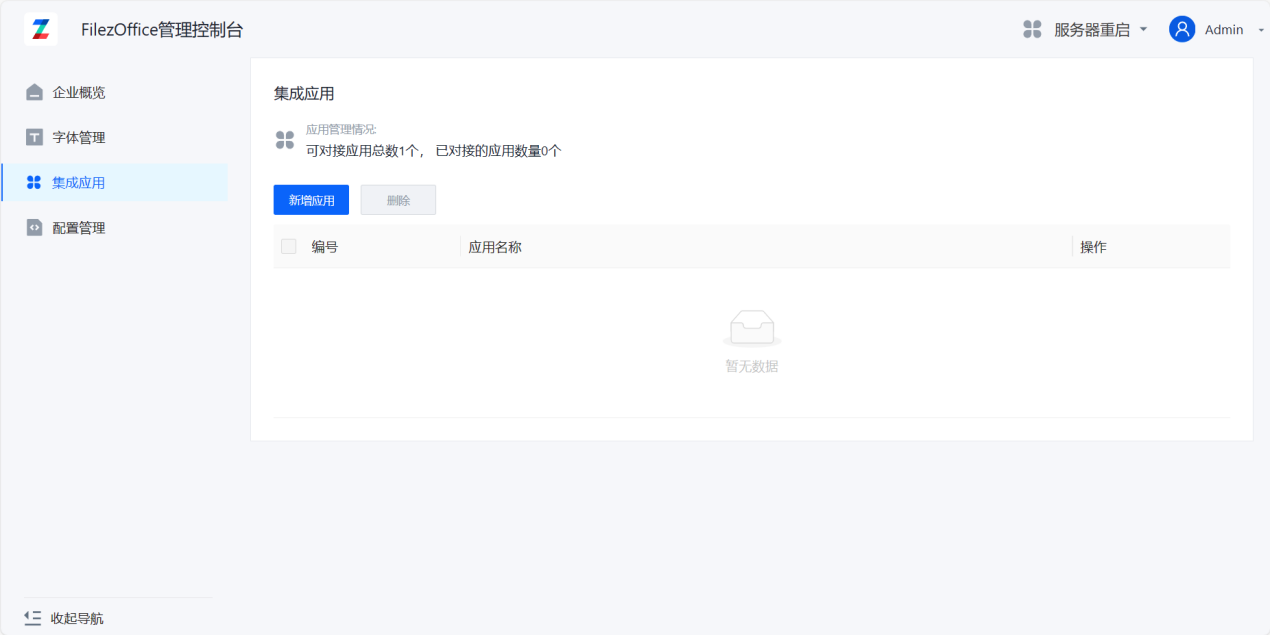
- Click Add Application to enter the add application page.
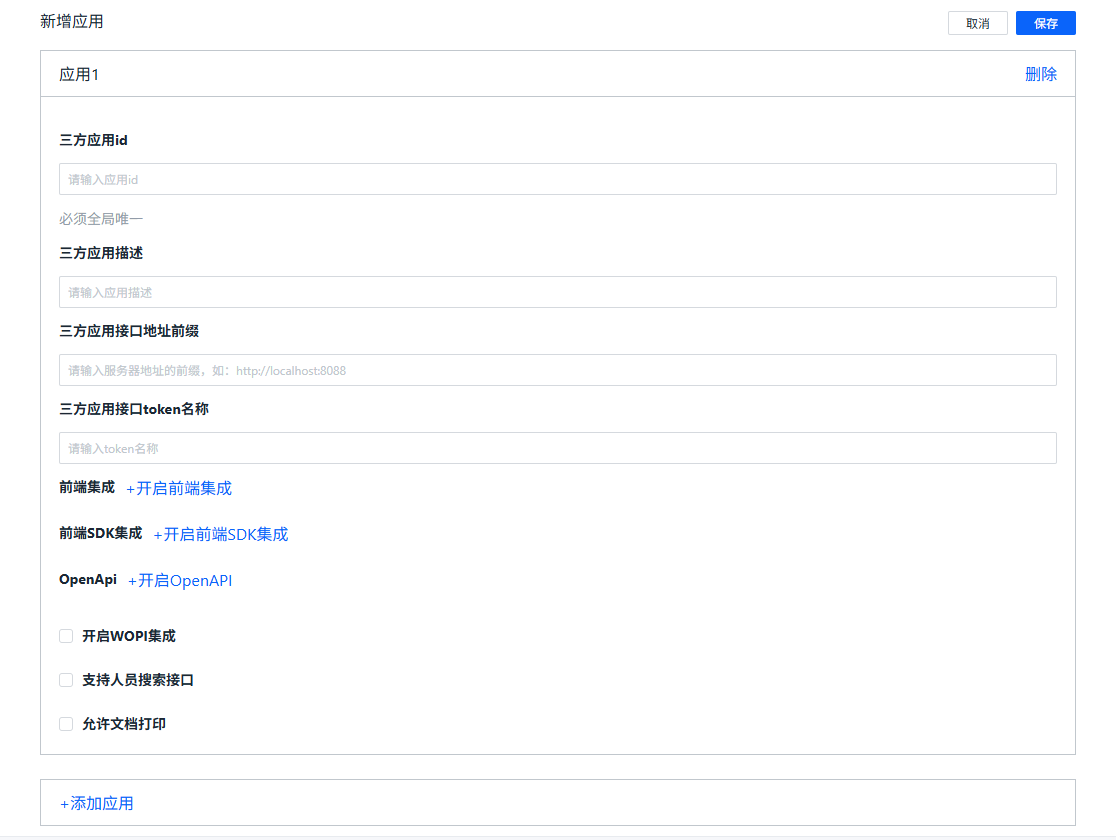
- Fill in the application information:
Third-party Application ID and Third-party Application Interface Address are required fields, others are optional. The Third-party Application Interface Address will constrain the prefix of the callback URLs to the third-party interfaces. The Third-party Application Interface Token Name defaults to zdocs_access_token (no need to modify).
Click Enable Frontend SDK Integration and fill in the Integration Encryption Key. You can generate it with the following command:
openssl rand -base64 64
This key also needs to be saved on the business system server side. Click Add Application at the bottom to add multiple application integrations at the same time.
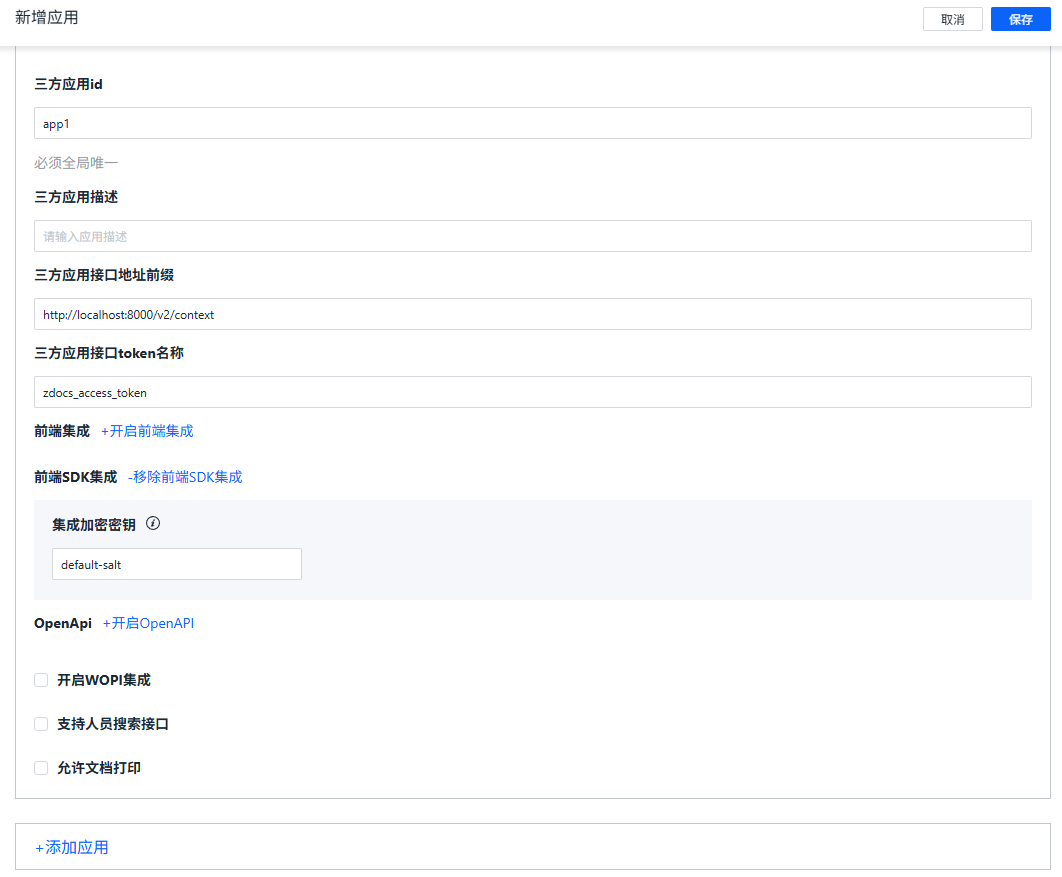
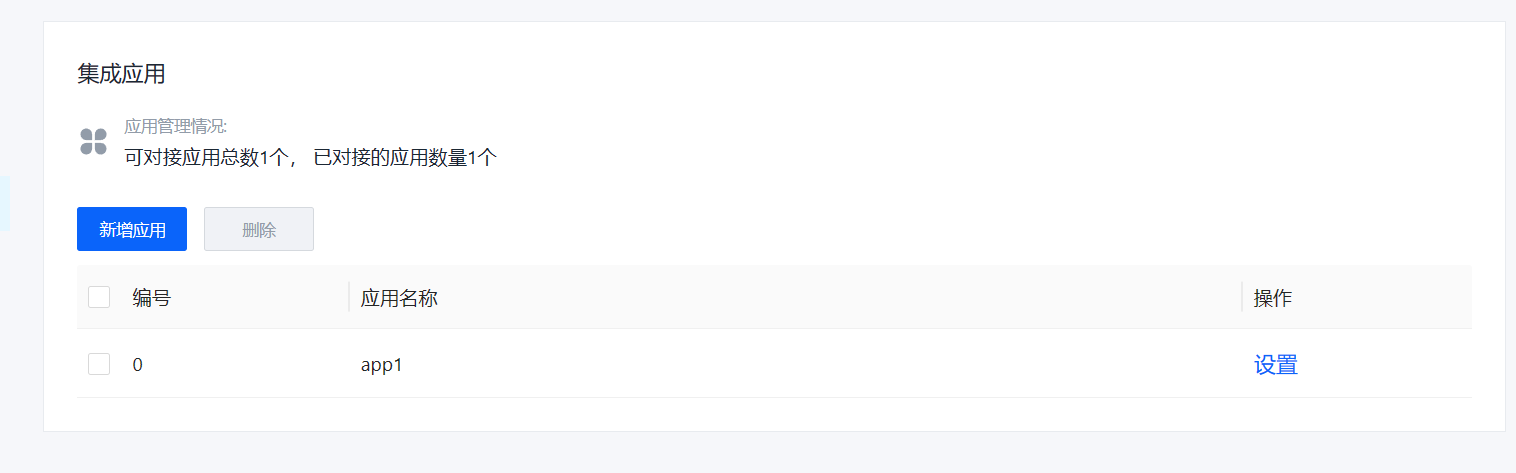
- After filling in, click Save. You can see the new application appear in the application list.