Important Terms
Before integrating with each application, the integration personnel of the business system need to determine: business system ID and business system callback context.
Document ID (docId)
That is, docId. Every file in a third-party system must have a unique document ID. The same file has the same ID. When a third-party system requests online editing/preview services, it needs to specify the docId for editing/previewing.
Call Example:
http(s)://${zOffice_domain}/docs/app/driver-callback?repoId=${repoId}&docId=${docId}&action=edit&downloadUrl=${downloadUrl}&uploadUrl=${uploadUrl}¶ms=${params}&ts=${ts}&HMAC=${hmac}
Important Notes:
- docId is the ID that identifies the file, string type
- Cannot contain colon
: - Cannot have one ID corresponding to different files, one moment it's a Word file, the next moment it becomes a PDF file
- Cannot have the same file, this time editing uses this ID, next time editing uses another ID
Business System ID (appId/repoId)
When a third-party system requests online editing/preview services, it needs to specify the appId for the current request.
Call Example:
http(s)://${zOffice_domain}/docs/app/driver-callback?repoId=${repoId}&docId=${docId}&action=edit&downloadUrl=${downloadUrl}&uploadUrl=${uploadUrl}¶ms=${params}&ts=${ts}&HMAC=${hmac}
Notes:
repoId=${repoId}in the URL query parameters is the business system's ID- This ID needs to be configured in the Filez Document Platform
Third-Party Business System Callback Context
Third-party business systems need to provide file upload and download addresses, and the prefix of the address (must include host) needs to be configured in the Filez Document Platform.
Example:
${context} = http://my.integration.com
(Note: this URL does not have a trailing '/')
At this time, the host of downloadUrl and uploadUrl in the request URL query parameters must be the same as the host in context. For example:
http(s)://${zOffice_domain}/docs/app/driver-callback?repoId=${repoId}&docId=${docId}&action=edit&downloadUrl=http://my.integration.com/files/123&uploadUrl=http://my.integration.com/files/update/123¶ms=${params}&ts=${ts}&HMAC=${hmac}
Frontend Integration Method Configuration
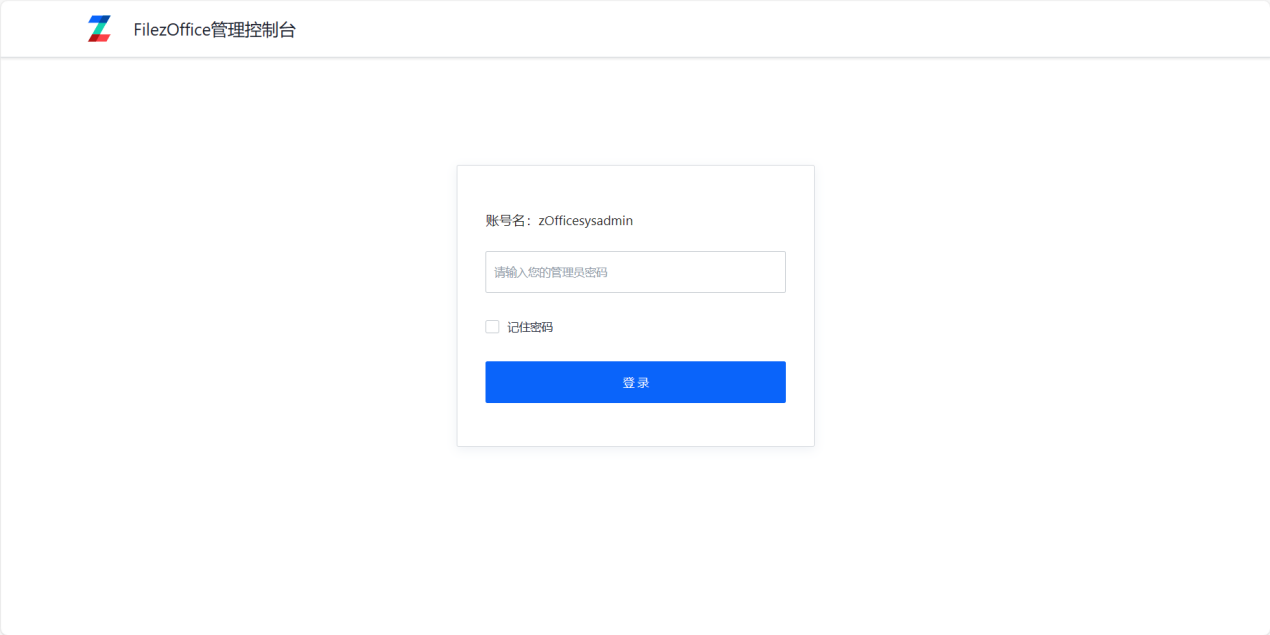
- Log in to the management console (docs/app/admin), default password is admin.
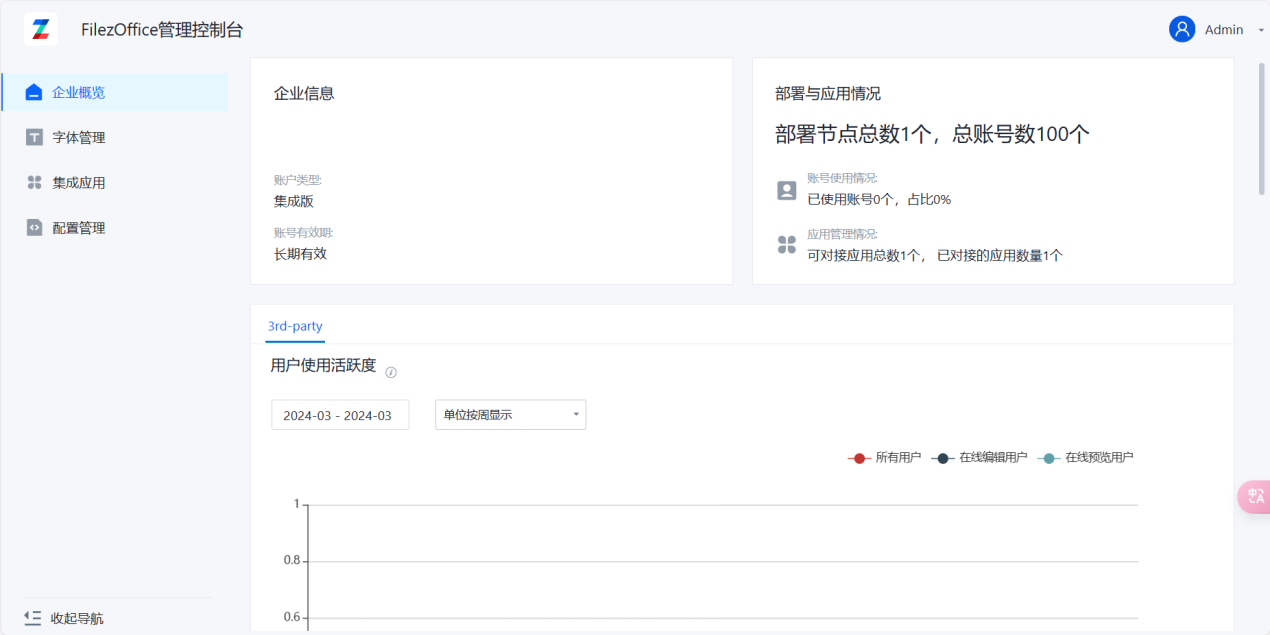
- Click on Integration Applications to enter the integration configuration page
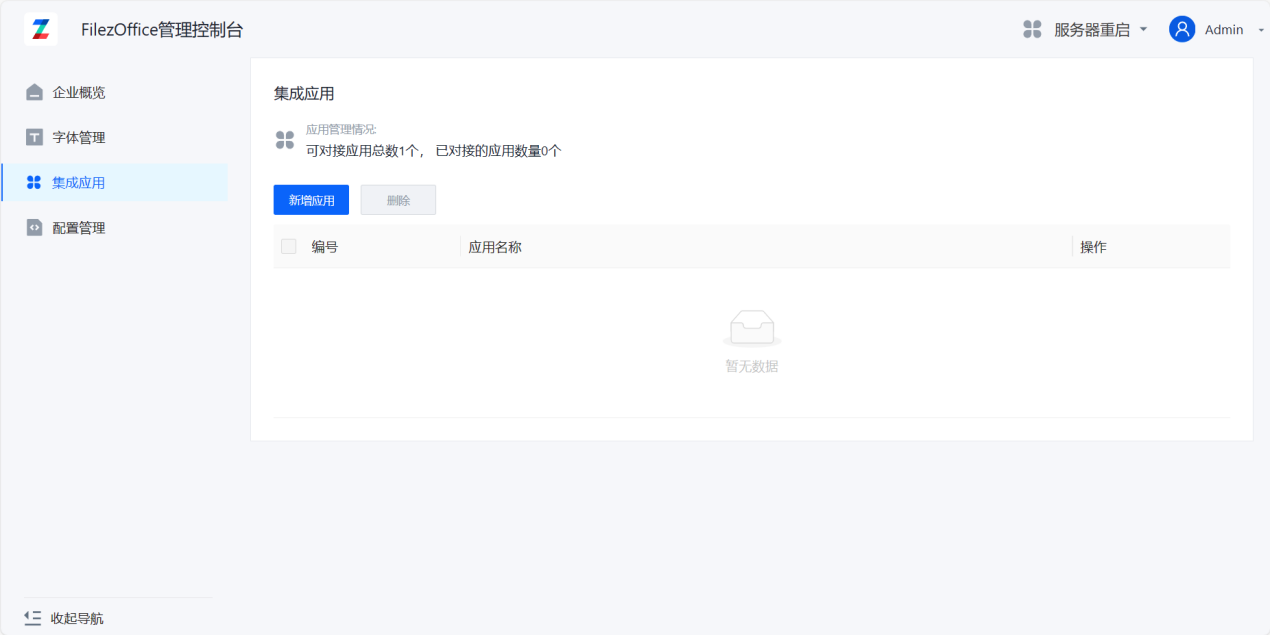
- Click Add Application to enter the add application page
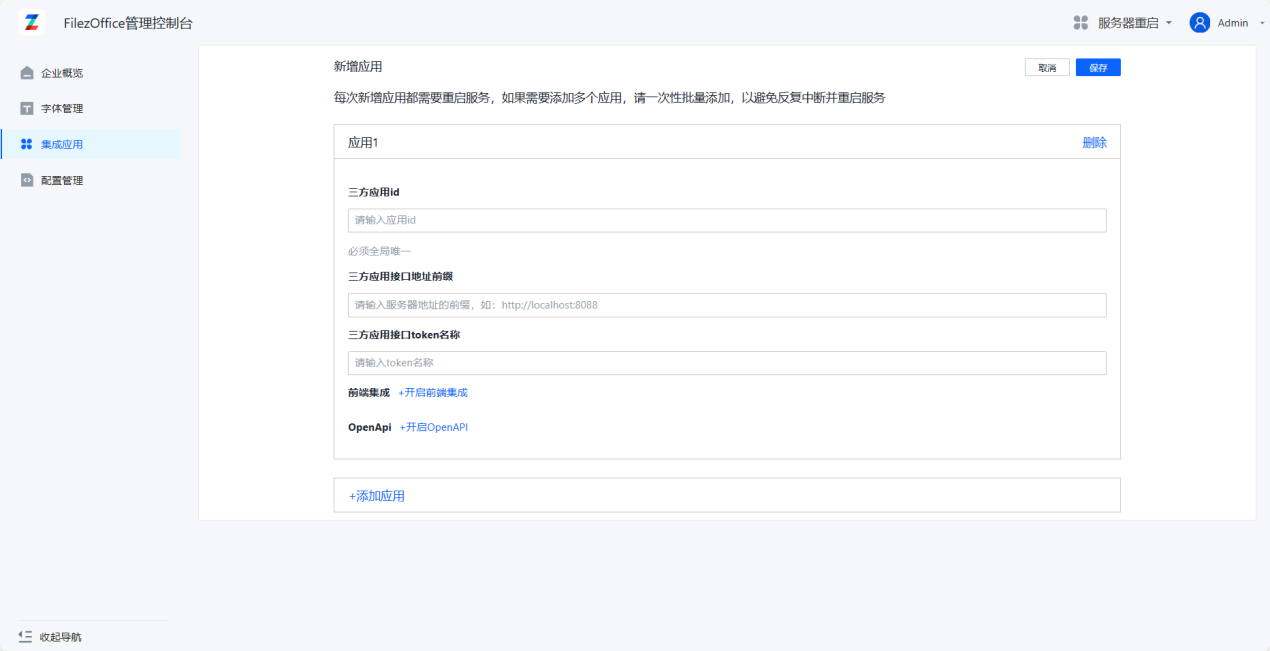
- Fill in application information:
Third-party Application ID and Third-party Application Interface Address are required fields, others are optional. The Third-party Application Interface Address will constrain the host of downloadUrl. The Third-party Application Interface Token Name defaults to zdocs_access_token (no need to modify).
Click Enable Frontend Integration and fill in the Integration Encryption Key. You can generate it using the following command: openssl rand -base64 64
This key needs to be saved to the business system server side as well.
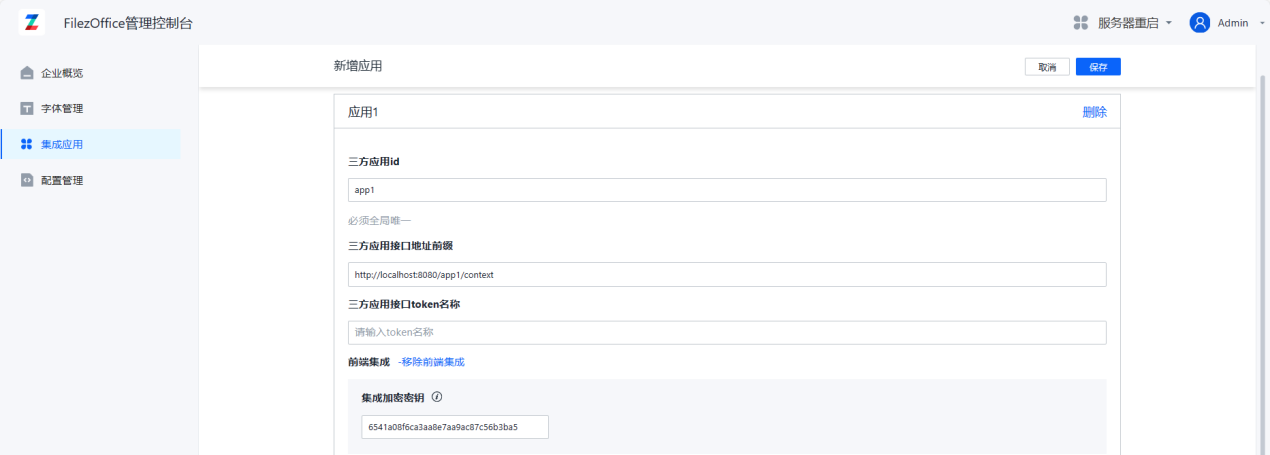
Click Add Application below to add multiple application integrations at the same time.
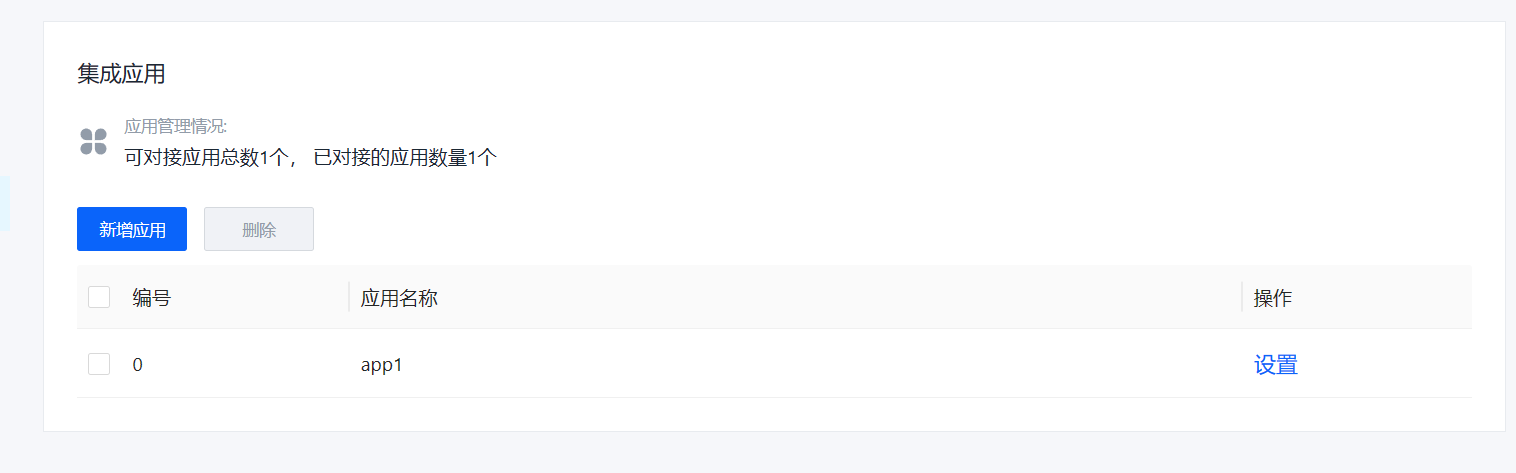
- After filling in, click Save. You can see the new application appear in the application list.