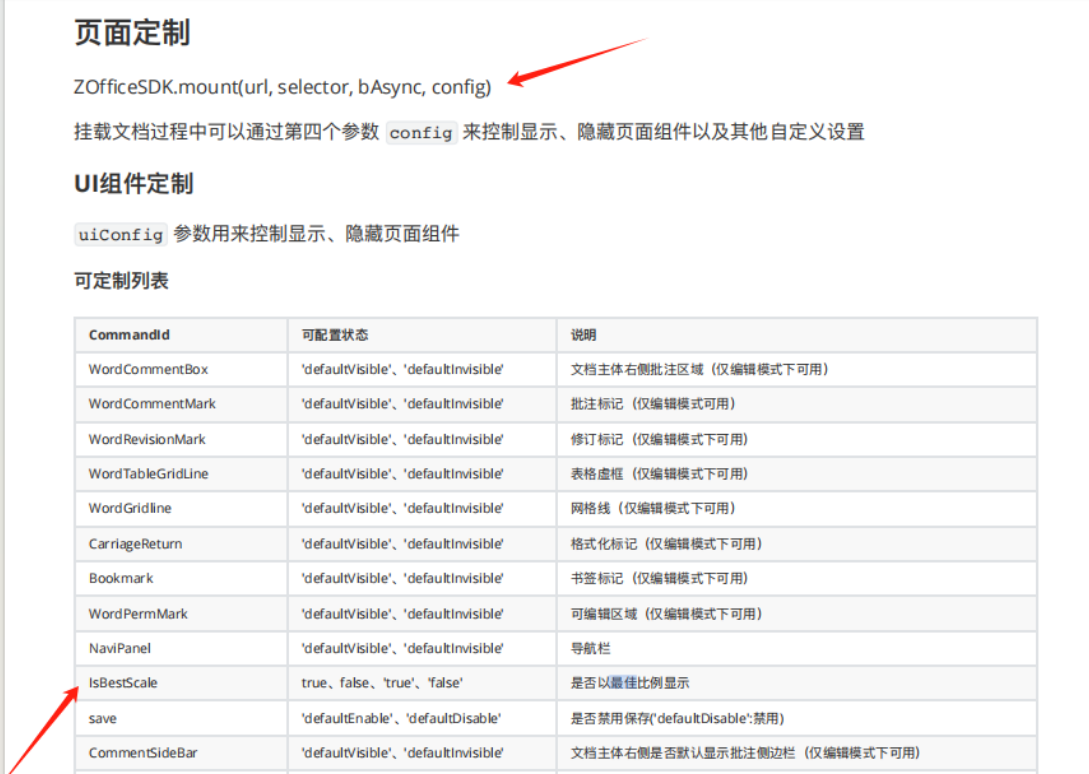
Default Property Settings
How to Set Default Properties/Status When Opening Documents
- When previewing PDF, do not show the left thumbnail by default
If you want to hide the left thumbnail when previewing PDF by default, you need to set the environment variable
LS_WEBRESOURCE_DOCUMENTS_PDF_SHOWNAVPANEL=false
- When previewing PDF, display at 100% scale by default
If you want PDF preview to default to 100%, you need to set the environment variable LS_DOCSSERVER_SERVICES_DOCUMENTS_FIXEDUSERPREFERENCE_PDF_VIEW_ZOOM=100
- When previewing text document files, display at 100% scale by default
If you want text document preview size to default to 100%, you need to set the environment variable
LS_DOCSSERVER_SERVICES_DOCUMENTS_FIXEDUSERPREFERENCE_SW_VIEW_ZOOM=100
- When editing text document files, display at 100% scale by default
If you want text document editing size to default to 100%, you need to set the environment variable
LS_DOCSSERVER_SERVICES_DOCUMENTS_FIXEDUSERPREFERENCE_SW_ZOOM=100
- When previewing/editing text document files, do not show bookmark markers by default
In the current online editing page, the iframe is loaded through JS SDK mount, and the parameters specify not to show bookmark markers by default
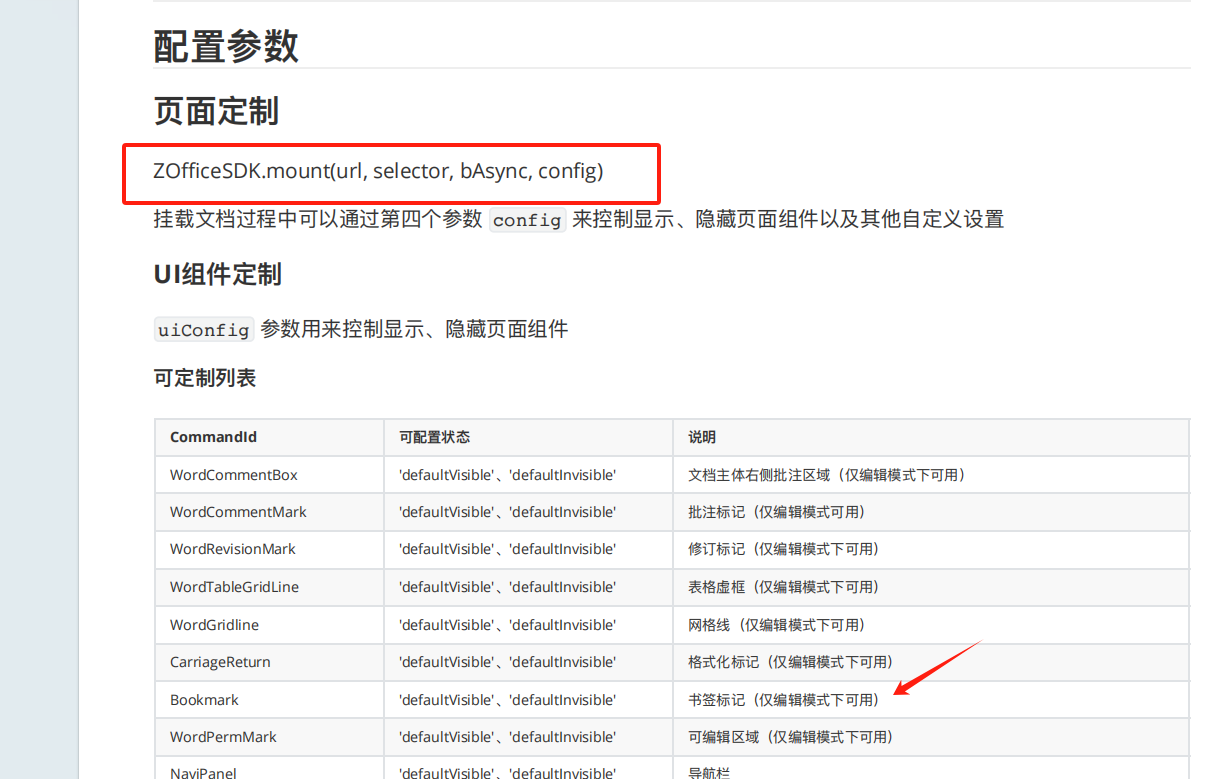
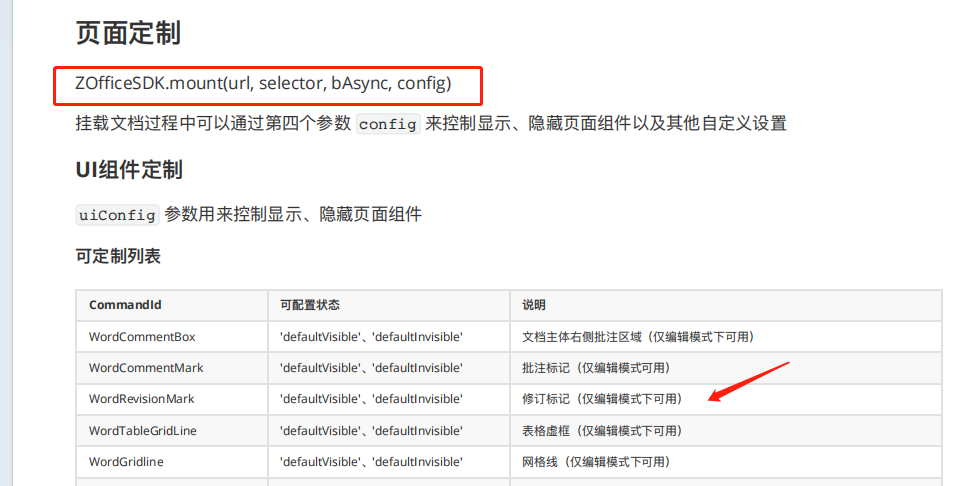
- When previewing/editing text document files, show comment and track change boxes by default
In the current online editing page, the iframe is loaded through JS SDK mount, and the parameters specify not to show bookmark markers by default
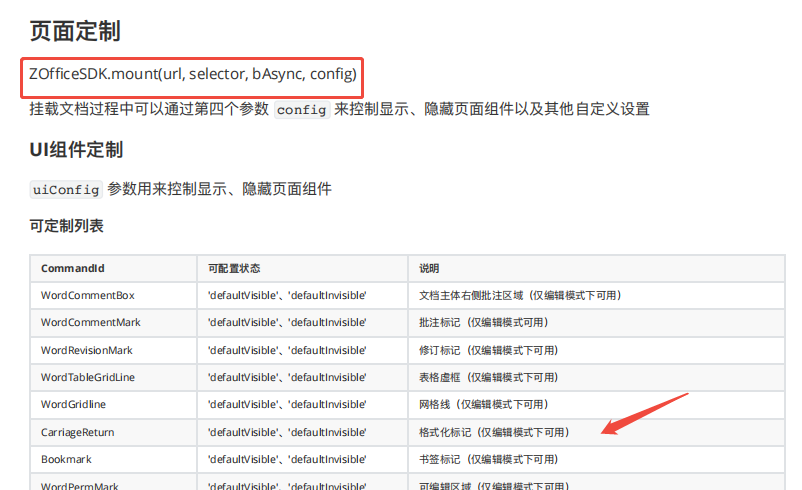
- When previewing/editing text document files, do not show formatting markers by default
In the current online editing page, the iframe is loaded through JS SDK mount, and the parameters specify not to show formatting markers by default
- When previewing/editing text document files, display at best page view scale by default